How 3Eyes Makes YouTube Safe for Kids
Most parental controls give you two options for YouTube: all of it, or none of it. Neither is right. Blocking it entirely cuts off genuinely good material and starts an argument you will keep having. Leaving it open hands your child the recommendation engine, which is built to maximise watch time rather than to be good for a ten-year-old.
3Eyes takes the third option. YouTube opens, but it is your YouTube: only the channels you approved, with the machinery that makes YouTube hard to stop switched off.
What your child actually sees
When a child on a 3Eyes computer types youtube.com, they do not get blocked and they do not get YouTube. They get this.
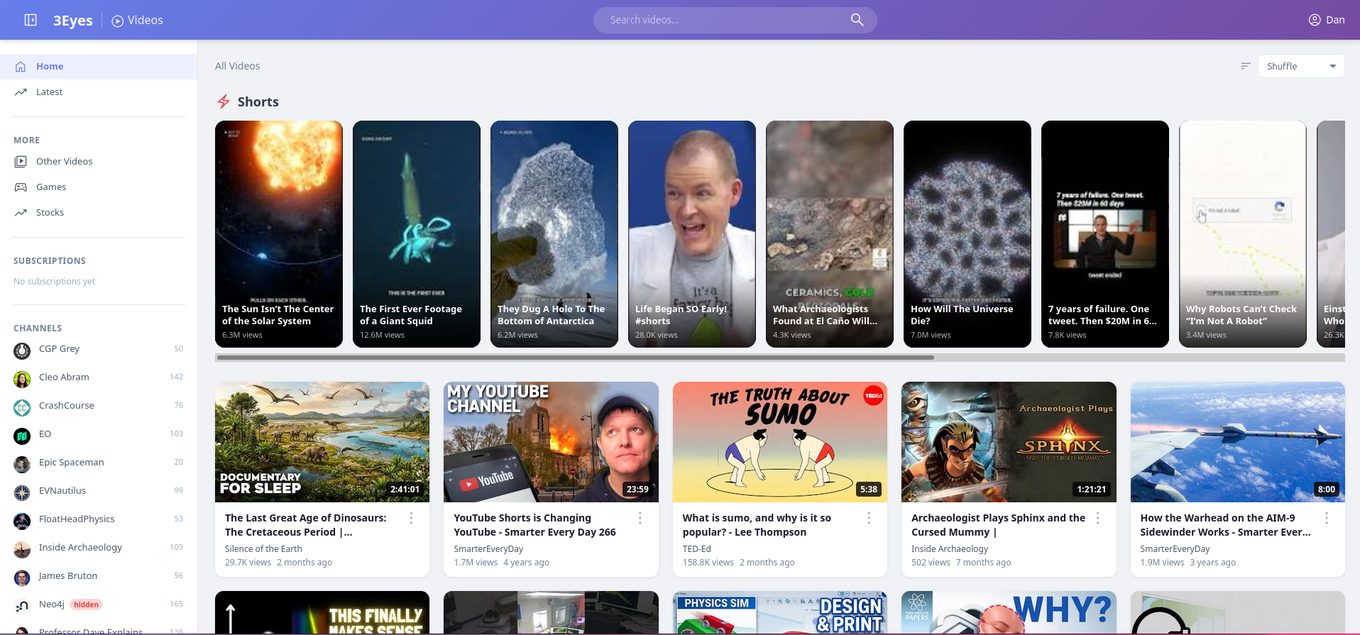
Every channel in that sidebar is one a parent approved. Every video in the grid comes from one of those channels. There is no path from this page to anything else on YouTube, because the page is not built from YouTube's recommendations - it is built from a list you control.
The search box searches your approved channels. Not YouTube.
What is missing, and why that is the point
The things that are not on that page do more work than the things that are.
No recommendation feed. This is the big one. YouTube's home page is assembled by a system optimising for time spent, and it is very good at its job. The 3Eyes home page is assembled from your channel list, which optimises for nothing at all. That single difference is most of why children come off it after one video instead of eleven.
No autoplay into the unknown. When a video ends, the next thing is not chosen by an algorithm reaching across all of YouTube.
No comments. The comment section under a children's video is a genuine hazard and adds nothing. It is simply not rendered.
No open search. A child cannot search their way out to a channel you did not approve.
No Shorts firehose. There is a Shorts row, and it is drawn from your approved channels like everything else - not the infinite scroll.
What a video looks like
Plain, and deliberately so: the video, the title, the channel, the description.
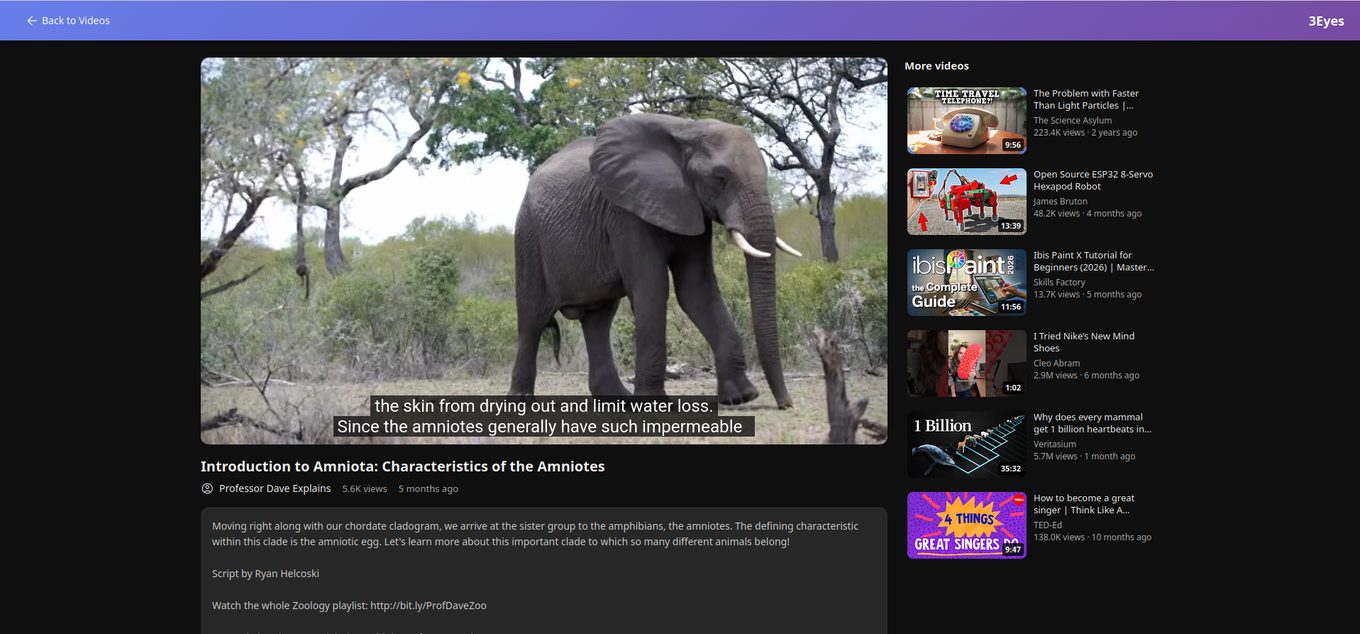
The "More videos" rail beside the player is the part worth looking at closely. On YouTube that rail is the recommendation engine, and it is where an afternoon disappears. Here it can only ever contain videos from channels you already approved - so the next click, and the click after that, are still inside the boundary you set.
Allowed versus featured
Two separate controls, and the distinction is more useful than it first sounds.
Removing a channel takes it away completely. Access is revoked.
Hiding from the home page keeps a channel fully watchable but stops it appearing on the front page. The use case is a channel that is fine but would otherwise dominate - useful for a school project, not something you want filling the grid every afternoon. In the screenshot above, one channel is marked hidden in the sidebar for exactly this reason.
How it compares
| Open YouTube | YouTube Kids | Blocking it entirely | 3Eyes | |
|---|---|---|---|---|
| Who picks the content | The algorithm | Google's filters | Nobody | You, channel by channel |
| Recommendation feed | Yes | Yes | - | No |
| Comments | Yes | No | - | No |
| Open search | Yes | Limited | - | Approved channels only |
| Ages well past 8 | - | Rarely | - | Yes |
| Child can still watch what they like | Yes | Somewhat | No | Within your list |
The column that matters is the last row against the last column. Blocking YouTube works right up until your child wants to watch something reasonable, and then it becomes a negotiation. An approved list turns that negotiation into a thirty-second decision instead of a standing argument.
YouTube Kids is a reasonable answer for under-8s and tends to be rejected by anyone older, because it is visibly a children's product. The 3Eyes page looks like a video site, which matters more to an eleven-year-old than most adults expect.
Getting started
You do not begin with an empty list. 3Eyes adds a set of well-known educational channels when you set up, so there is something to watch immediately - and every one of them can be removed if you would rather it were not there.
From there you add channels by pasting a YouTube link or searching by name. Changes reach your child's computer within a minute or two.
The full walkthrough is in the help centre, including how to hide a channel without removing it.
Where 3Eyes Fits
The YouTube curation above is one part of 3Eyes, which is parental control software for family computers. The same idea runs through the rest of it: the web is blocked by default and you approve sites rather than chasing bad ones, and the machine also carries around sixty interactive science lessons and a built-in tutor.
That last part matters more than it sounds for YouTube specifically. "You cannot watch that" is a much easier position when the same laptop has something worth doing on it.
Setup is about two minutes per computer. See what it includes or create an account.
Frequently asked questions
Can my child still search YouTube? They can search across the channels you approved. They cannot search the whole of YouTube, which is the usual route to content nobody chose.
Does this block YouTube completely? No. General access to youtube.com is blocked, and in its place your child gets the approved-channel version. They are not locked out; they are inside a boundary you set.
What happens when a video ends? Nothing autoplays from outside your list. The suggestions beside the player come only from channels you approved.
Can I allow a channel without it taking over the home page? Yes - that is what "hide from home page" does. The channel stays fully watchable but does not appear in the grid.
Is this better than YouTube Kids? For under-8s, YouTube Kids is a reasonable option. Past that age children tend to reject it as babyish, and its content is still chosen by Google's filters rather than by you. The approved-channel model ages considerably better.
How long do channel changes take to apply? Usually a minute or two, once the child's computer syncs.
Related guides
- How to Block YouTube on a Computer (All Devices)
- How to Stop Kids Watching YouTube All Day
- My Child Is Addicted to YouTube: What Actually Works
- Interactive Science Lessons Kids Actually Use
- Educational Alternatives to Roblox Kids Actually Like
- What the Research Actually Says About Kids and Screen Time
- Parental Controls for Homeschool Families