
YouTube curation
Instead of leaving all of YouTube open, 3Eyes blocks the site by default and lets you build an approved list of channels. Your child can only watch the channels you allow — nothing else.
How it works
3Eyes blocks general access to youtube.com. Open browsing, search, the recommendation feed, and unapproved channels are all unavailable. In their place, your child sees a simple, calm video home page built only from the channels you’ve chosen.
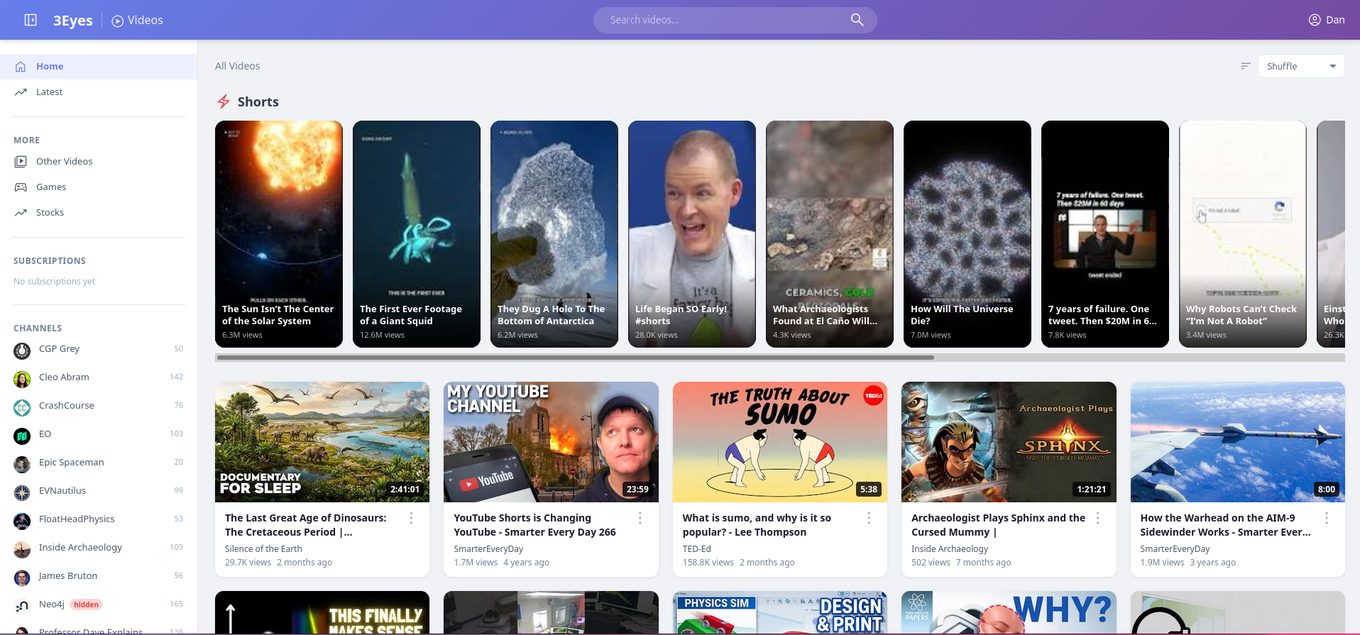
You stay in control by deciding two things for your family:
- Which channels are allowed — only approved channels can be watched.
- Which allowed channels appear on the home page — so the front page stays focused.
Allowlist, not blocklist. Everything is off until you turn it on. You never have to chase down individual bad channels — if you didn’t add it, it can’t be watched.
Default educational channels
So you’re not starting from an empty list, 3Eyes automatically adds a set of well-known educational channels when you begin. Your child can start watching safe, learning-focused content right away, with no setup required.
These defaults are only a starting point — they’re completely yours to change. If there’s a default channel you’d rather your child didn’t see, just remove it and it’s gone immediately.
Adding and removing channels
- Add a channel by pasting its YouTube link or searching by name. Once approved, it shows up for your child.
- Remove any channel — including the defaults — at any time. Removing it revokes access right away.
- Adjust whenever you like. Your approved list isn’t permanent; tune it as your child’s interests and age change.
Hide a channel from the home page
Sometimes you want to allow a channel without featuring it. For example, a channel that’s useful for a school project but that you don’t want filling the front page every day.
For that, every channel has a “Hide from home page” option. When it’s on:
- The channel is still fully allowed — your child can watch it if they go to it directly.
- It simply won’t appear on the video home page, keeping the front page focused on the channels you want to encourage.
Allowed vs. featured. “Remove” takes a channel away entirely. “Hide from home page” keeps access but tucks it out of the spotlight.
What a video looks like
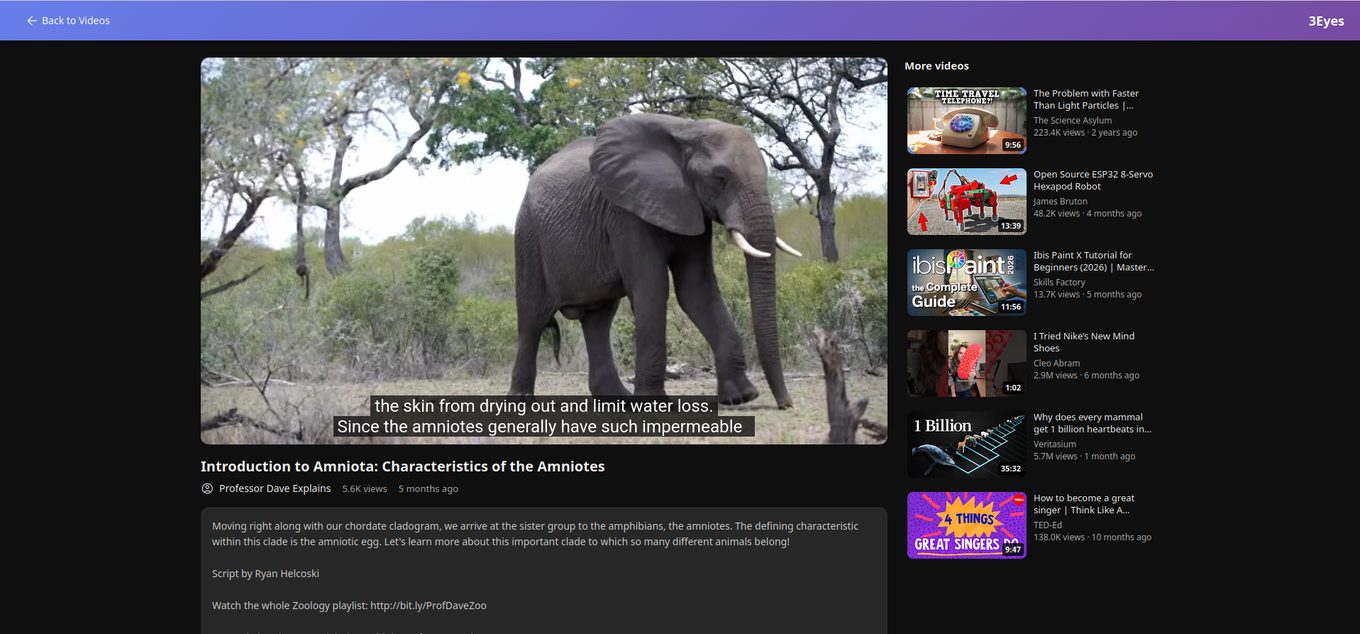
Playback is deliberately plain: the video, its title, the channel and the description. There are no comments, no autoplay into something you never approved, and no recommendation rail pulling in the rest of YouTube. The “More videos” list beside the player is drawn from your approved channels and nowhere else, so the next thing your child clicks is still something you allowed.
Where to manage your channels
All of this lives on your Manage YouTube Channels page when you’re signed in. From there you can add channels, remove any channel (including the defaults), and toggle “Hide from home page” for each one.
Changes take effect on your child’s computer the next time it syncs — usually within a minute or two of saving.